
How to use SnoreGuard AI
Set up in under a minute - just connect your earphones, start the Guard, and sleep peacefully.
Headphones or earphones are required for SnoreGuard AI to work. The snore-blocking audio is played directly into your ears - without them the app cannot protect your sleep.
Get started in a few steps
-
Connect your earphones or headphones first This is the most important step. SnoreGuard AI plays the inverted snore-cancelling audio directly through your earphones — wired or Bluetooth. Without earphones or headphones the app will not block snoring. Earphones with silicone ear tips give the best seal and the most effective snore blocking.
-
Download and open SnoreGuard AI Install from Google Play. No account required for core features - just open the app.
-
Place your phone bedside Set your phone on your bedside table or nightstand, microphone facing the room. Keep it within 1.5-2 m of the snorer.
-
Tap the power button to start Guard Tap the large power icon on the Home screen. SnoreGuard AI begins listening immediately and the screen can be turned off or face-down.
-
Choose your masking sound (optional) Tap the sound selector to choose Brown Noise (default), Rain, White Noise, or Ocean Waves (Premium). The sound plays automatically when snoring is detected.
-
Review Insights in the morning Tap the Insights tab to see snore events, sleep quality score, and duration for the night.
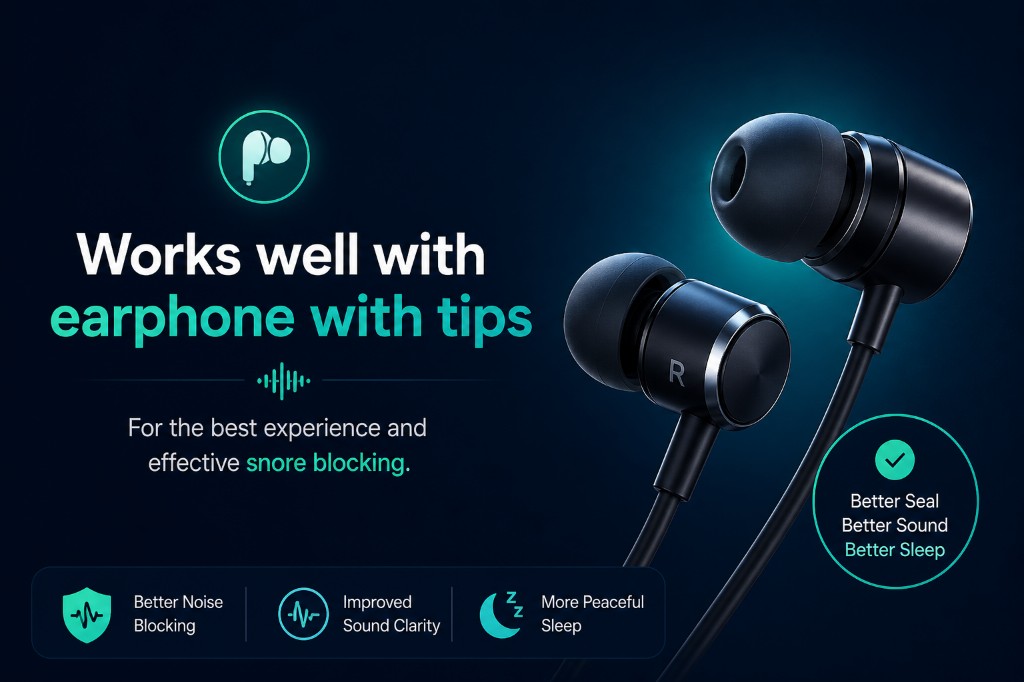
Use earphones with silicone tips
SnoreGuard AI has been tested with a wide range of headphones and earphones. The best results come from in-ear earphones with silicone ear tips — they create a better acoustic seal so the cancellation signal reaches your ears more effectively.
- Better seal = more effective snore blocking
- Improved sound clarity for masking tones
- More peaceful, uninterrupted sleep
- Works with both wired and Bluetooth earphones
⚠ Important: The app requires headphones or earphones to function. Without them, the snore-blocking audio has nowhere to play.
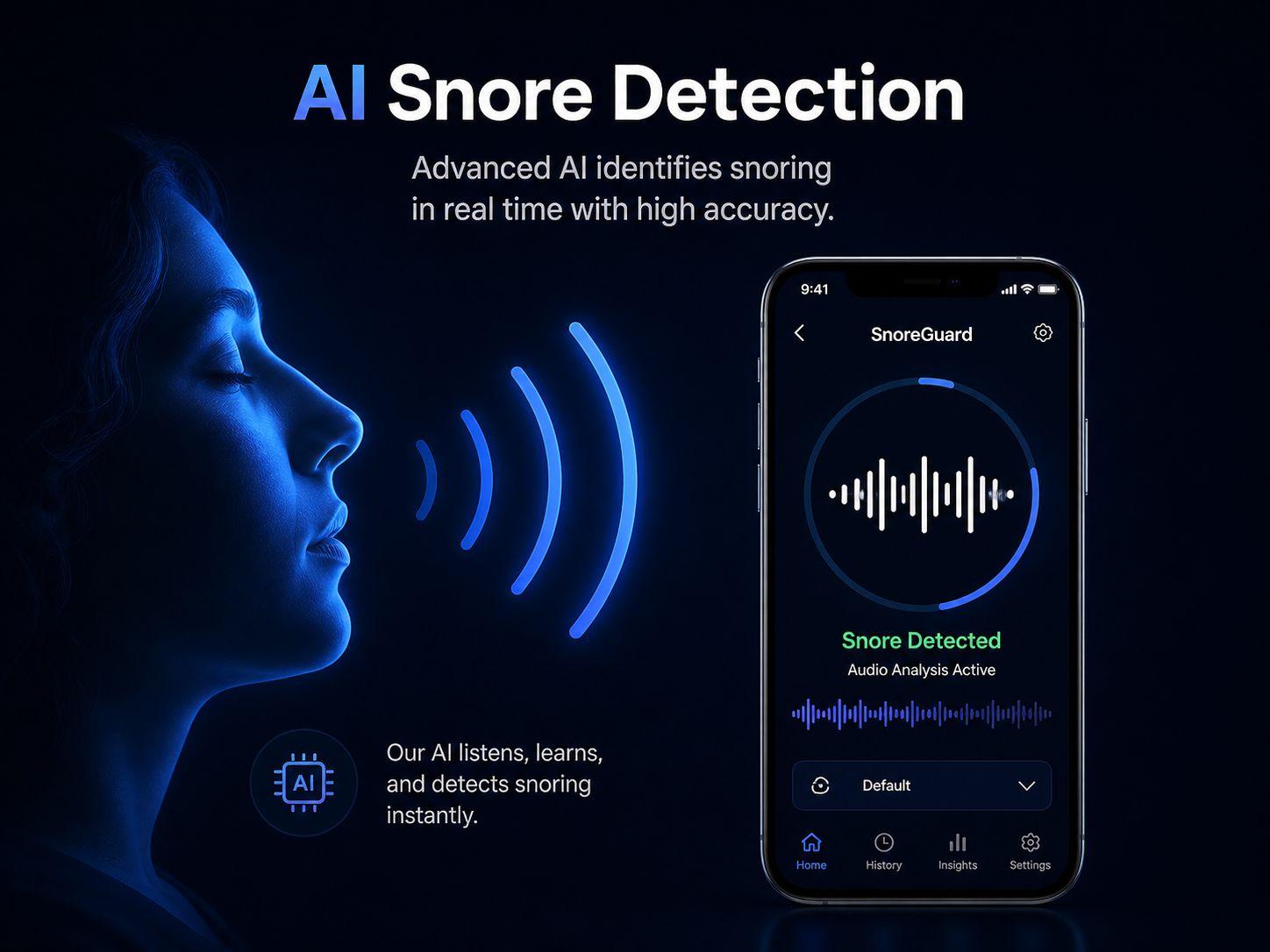
What happens while you sleep
A foreground service keeps the app running even with the screen off. Audio is captured in 32 ms frames, analysed on-device, and discarded - never stored, never uploaded.
- Foreground service - survives screen-off and Doze mode
- 32 ms audio windows analysed in real time
- Detection triggers masking ramp within 0.5 s
- Minimal battery impact - optimised for all-night use
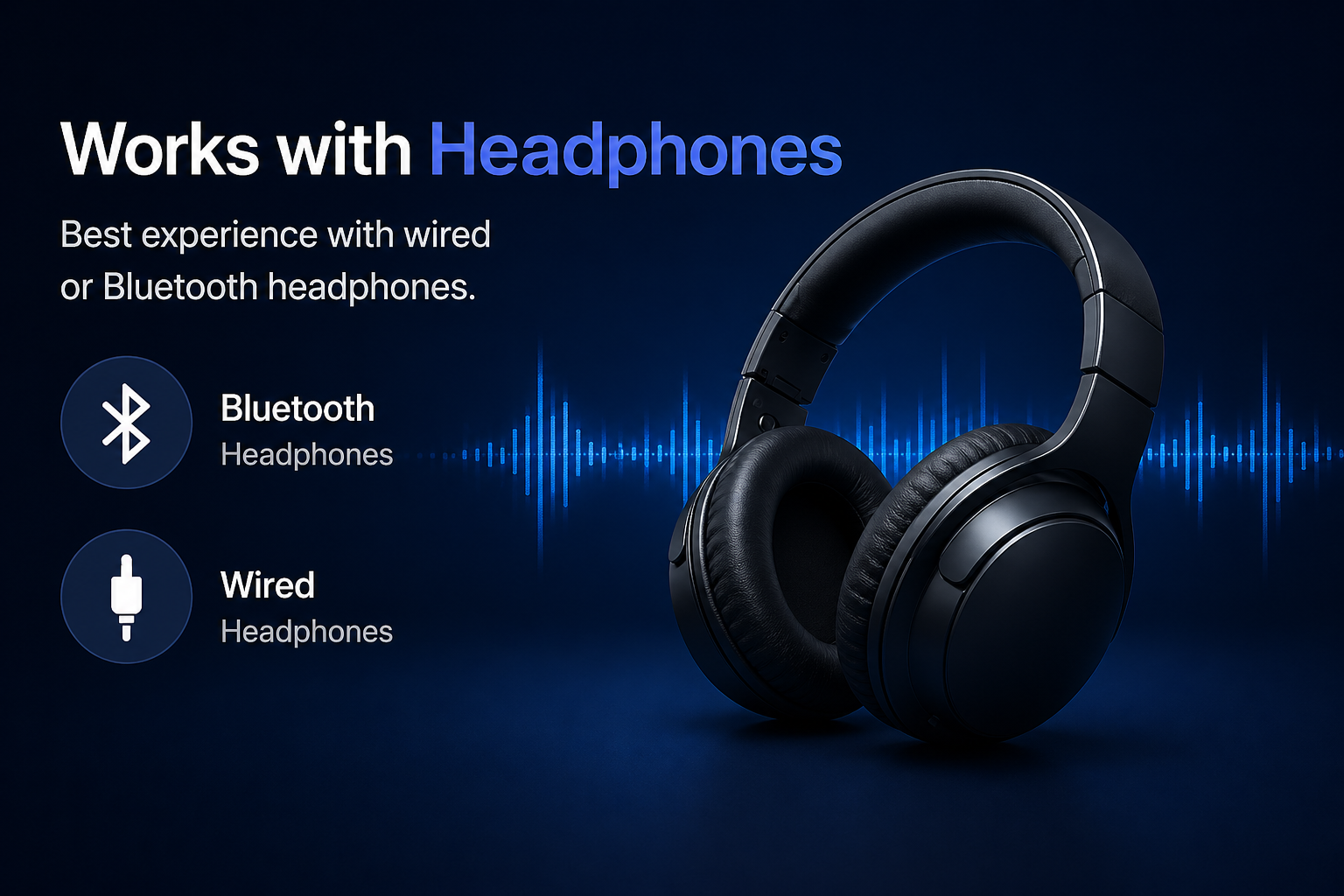
Headphones are required
If you sleep with earphones, enable the Headphone Mode toggle in Settings. The app adds a phase-cancellation path - inverted snore-band audio directly to your ears.
- Connect your Bluetooth or wired headphones first (on Android 12+, allow the Bluetooth / nearby devices prompt if you use wireless - needed for headphone routing)
- Go to Settings → Headphone Mode → Enable
- The cancellation signal plays only during active snore events
- Combine with speaker masking for the deepest silence
All five screens explained
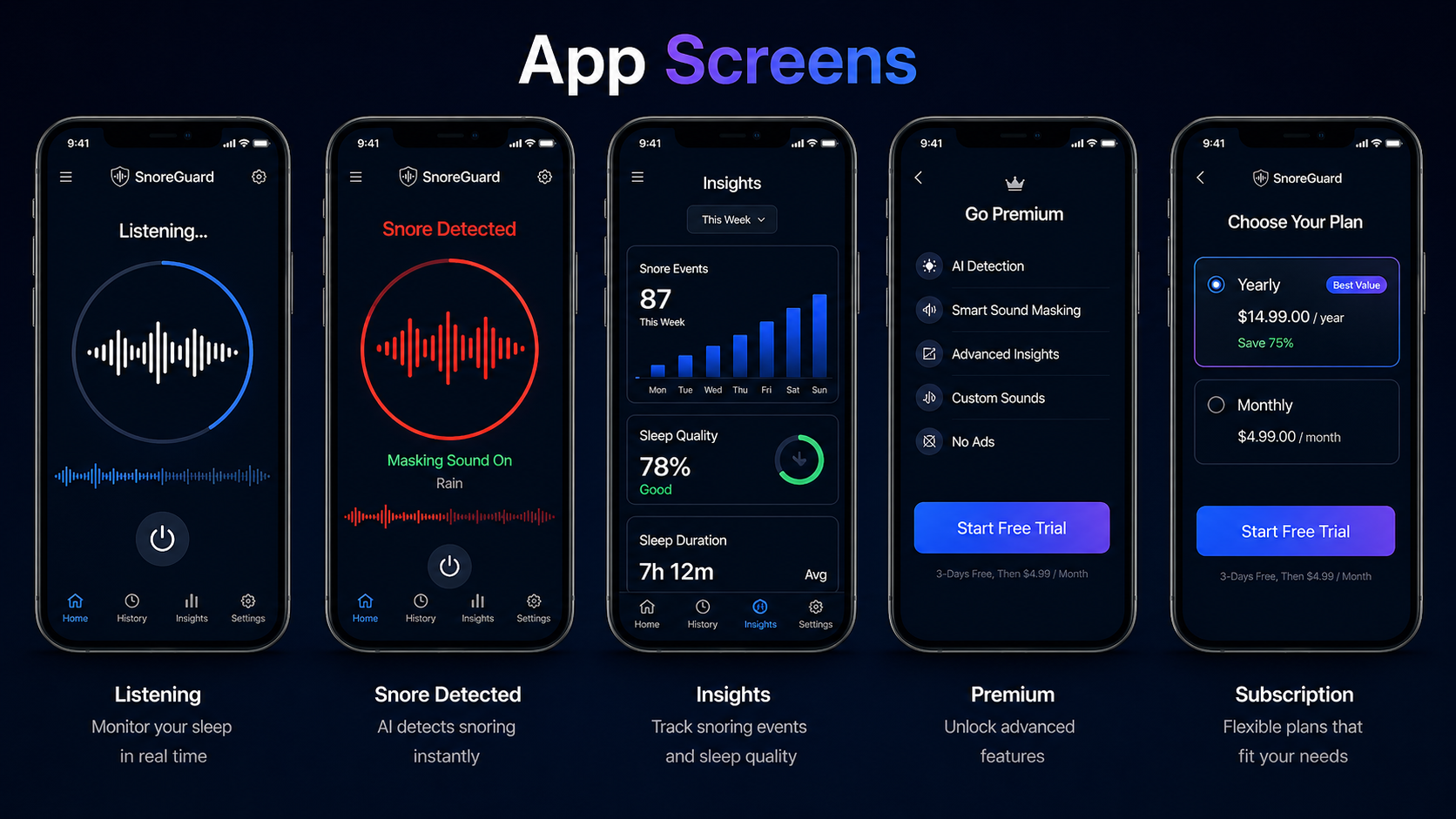
Tips for the best experience
-
Connect your earphones or headphones first This is the most important step. SnoreGuard AI plays the inverted snore-cancelling audio directly through your earphones — wired or Bluetooth. Without earphones or headphones the app will not block snoring. Earphones with silicone ear tips give the best seal and the most effective snore blocking.
- Place phone 1-2 m from the snorer Closer than 50 cm may pick up breathing noise. Beyond 2.5 m reduces sensitivity.
- Run a calibration night The first night builds the spectral fingerprint. Detection accuracy improves from night two.
- Keep screen brightness low Use the battery settings to allow SnoreGuard AI as a background process. Enable "Unrestricted battery use" for this app.
- Try Brown Noise first It's the most effective masking tone for snore frequencies. Rain and Ocean are great alternatives (Premium).
- Check Insights weekly Sleep quality trends over 7 days help you see if the masking is reducing disturbances night over night.
Ready to sleep peacefully?
Download SnoreGuard AI free. Setup takes under a minute.